How to Turn Your Business Documents into an AI Knowledge Base
Building an AI knowledge base from documents is simpler than it sounds. You take the files your business already has — price lists, service descriptions, frequently asked questions — upload them, and an AI assistant on your website starts answering customer questions from them.
This post walks through what a knowledge base is, which documents to pick, how the upload works, and how to check that the answers are right.
What an AI knowledge base actually is
A knowledge base is the set of documents your assistant is allowed to answer from. Nothing more. When a visitor asks a question, the assistant searches those documents, finds the parts that match, and writes an answer from them.
This is the important difference from a general chatbot. A general chatbot answers from whatever it learned on the internet, which may have nothing to do with your business. An assistant with a knowledge base answers from your files. If your price list gives a figure for a service, that is the figure a visitor gets.
Which documents to start with
You do not need to write anything new. Look at what you already send to customers by email or hand out in person:
- A price list or rate sheet
- Service or product descriptions
- A list of frequently asked questions, if you have one
- Opening hours, location and contact details
- Delivery, booking or return policies
If a document answers a question a customer asks you every week, it belongs in the knowledge base.
One habit makes a real difference: keep each document on one subject. A file that mixes pricing, hours and return rules in one long page is harder for the assistant to search than three short files, one per subject. Short and focused beats long and mixed.
How the upload works
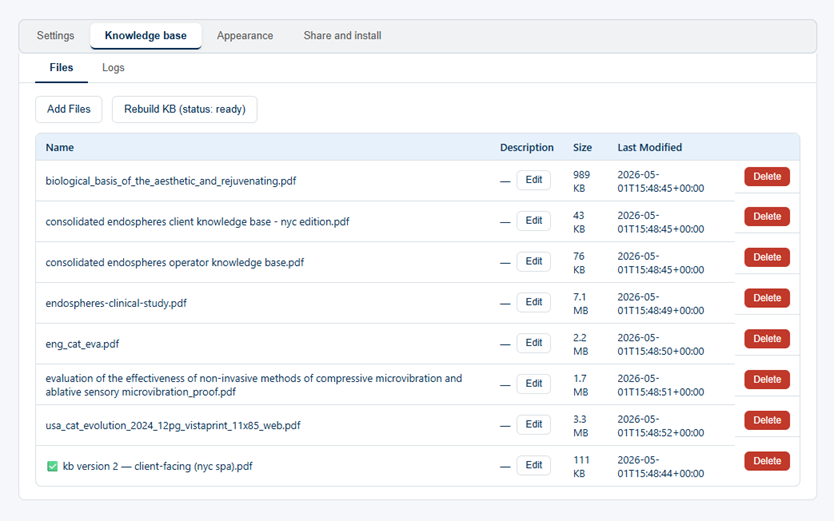
In your AIChatPlacement account, the Knowledge base tab has an upload area. You pick the files from your computer and they appear in a list, and you can give each one a short description so you remember what it covers. PDF, Word, plain text, Markdown, CSV, PowerPoint and Excel files all work, up to 2 MB each.
One thing is worth checking with a PDF. The file must hold real text you can select with the mouse. A scan or a photograph of a printed page looks the same on screen but holds no readable text inside it, so the original file gives a far better assistant.
Once the files are in place, press the Rebuild KB button. The system reads every document and prepares the assistant, and the status becomes Ready when it finishes. You do not have to tag anything, sort anything or fill in forms. The file itself is the source.
When a document changes, upload the new version and press Rebuild KB again. The assistant answers from the files as they stood at the last build, so keeping it current means uploading the new file and building once more.
Checking the answers
Before putting the assistant on your website, ask it the questions your customers ask you. Ask about prices. Ask about hours. Ask something a little vague, the way a real visitor would.
If an answer is wrong or thin, the fix is almost always in the documents, not in the assistant. Either the information is missing, or it is buried in a file about something else. Add it, or move it into its own file, build again, and ask once more.
This checking step is short — ten minutes with your five most common questions — and it is the difference between an assistant you trust and one you worry about.
What happens when the answer is not there
An assistant that answers only from your files will sometimes meet a question your files do not cover. When that happens it says so, rather than inventing something. It also never reaches out to the open internet for a substitute. That is worth knowing before you go live, because it tells you what a thin answer means: a gap in the documents, and nothing worse.
What visitors see
Once the knowledge base is ready, the assistant goes on your website as a chat. A visitor types a question at nine in the evening, and instead of writing you an email and waiting until morning, they get the answer from your own documents right away. If you have not set up the chat yet, the steps are in how to add an AI chat assistant to your website — it is one line of code and no programming.
Start with three files
You do not need a perfect document library to begin. Pick three files: your prices, your services, and your hours and contacts. Upload them, build the knowledge base, ask a few test questions, and you have a working AI knowledge base built from documents you already had.
Ready to try it with your own files? Create your free AIChatPlacement account and upload your first documents in a few minutes.